
Buying a used laptop? 5 checks to make before paying
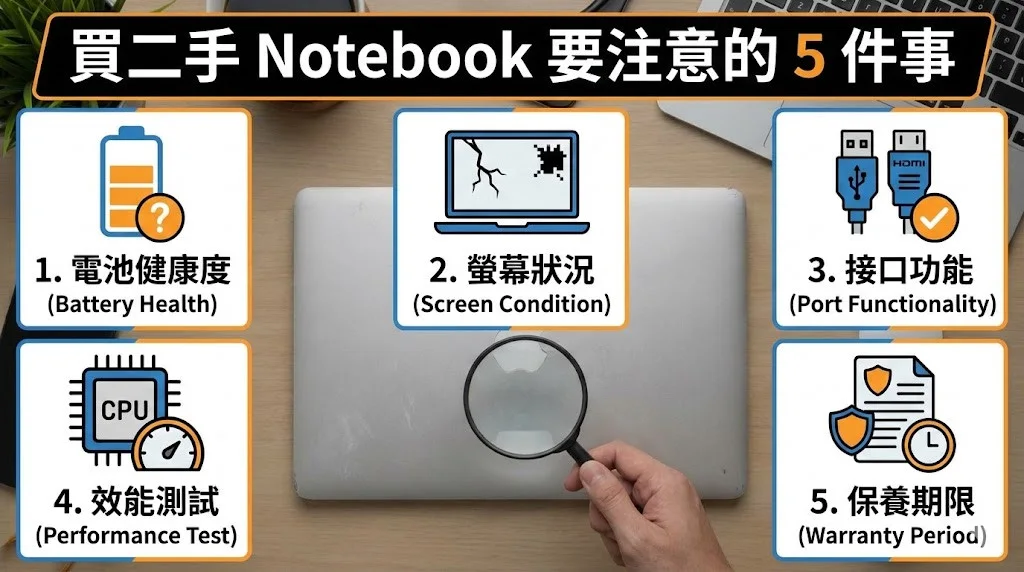
A used laptop can be good value for study or office work. Ask for enough time to test it in person, or buy from a seller with a clear return policy.
1. Test the case, screen and controls
Check the hinges, keyboard and touchpad. Display a plain light and dark screen to look for dead pixels, flicker or uneven backlighting. Test charging, USB ports, Wi-Fi, the camera and audio if you need them. A bulging case or raised trackpad may indicate a swollen battery. Avoid buying or charging a machine that shows those signs.
2. Verify the specifications and storage
Open Settings → System → About to compare the processor and RAM with the listing. Check the drive’s capacity in Windows, and use a trusted drive-health tool if the seller allows it. For Windows 11, verify compatibility rather than relying on a preinstalled copy.
3. Check battery condition
On Windows, run powercfg /batteryreport and compare full charge capacity with design capacity. The numbers are a useful estimate. Test the machine unplugged for a short period and factor in replacement cost if it drains quickly.
4. Check the receipt, warranty and repairs
Ask for proof of purchase, repair history and warranty terms. Check the device’s serial number with the manufacturer and confirm whether any remaining warranty can transfer. Get the model, serial number and return terms on the receipt.
5. Confirm the seller can transfer the device
Have the seller remove their account and show that the computer can be set up for a new owner. If an organisation still manages the laptop or an activation lock remains, ask the seller to resolve it before paying. Use a transaction method that leaves a record.