
PC stuck on the startup logo? 5 checks for Windows PCs
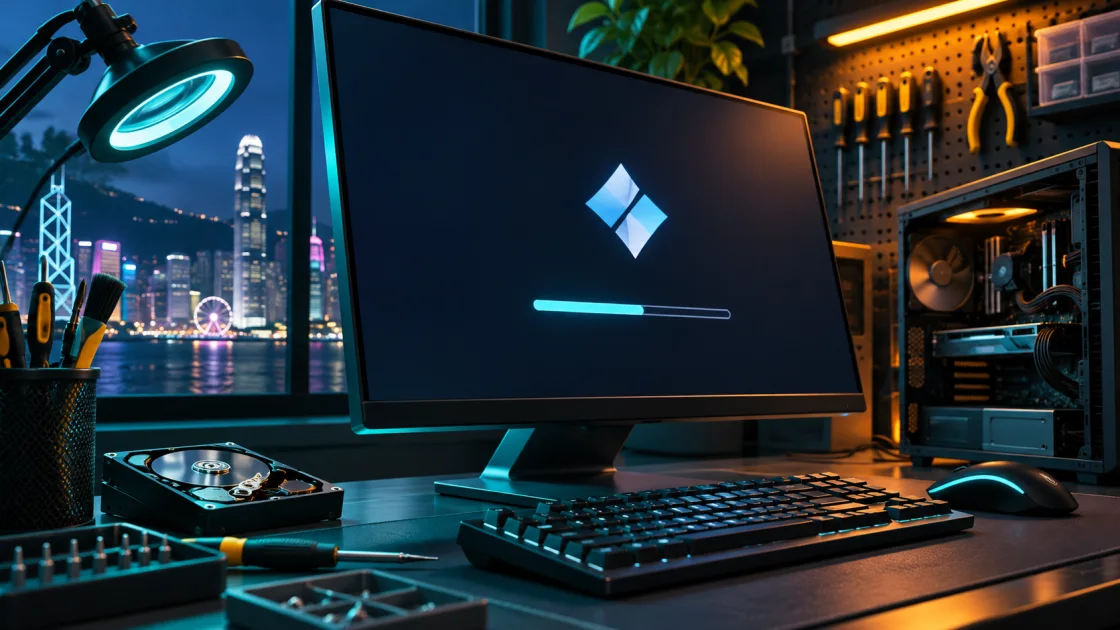
A frozen manufacturer logo can mean the computer has not completed its hardware checks. A logo with spinning dots often means it has reached Windows startup. Note what you see before trying recovery or replacing a part.
1. Note the last screen and any errors
Look for spinning dots, an error message or a repeating diagnostic light pattern. Record whether you can open the boot menu or enter BIOS. If you see an update progress screen, leave it connected to power. Stop immediately if you notice smoke or a burning smell.
2. Remove unnecessary external devices
With the PC off, disconnect external disks, USB drives, SD cards and docks. Leave only the display and necessary keyboard or mouse connected, then start it again. If startup works, reconnect devices one at a time to find the trigger.
3. Check whether the firmware sees the system drive
In BIOS or UEFI, check whether the SSD appears. On a UEFI Windows installation, select the matching Windows Boot Manager entry if it is listed. Do not change storage mode, Secure Boot or TPM settings at random. A missing or unstable drive calls for a connection or drive check before Windows repair.
4. Use hardware diagnostics if the PC cannot complete startup
Follow the manufacturer’s manual for beep codes or diagnostic lights. If the issue started after a RAM change, check the recommended slots and memory compatibility with the power disconnected. In a Shadow Dragon case, the PC froze at the ASUS logo until the technician secured a loose M.2 SSD.
5. Try Startup Repair when the drive is detected
Open Windows Recovery Environment, or start from official installation media and choose Repair your computer. Select Troubleshoot → Advanced options → Startup Repair. Prepare the BitLocker recovery key if needed, and back up important files before any reinstall. Microsoft Startup Repair