
PC won’t turn on? 6 checks for a computer with no power
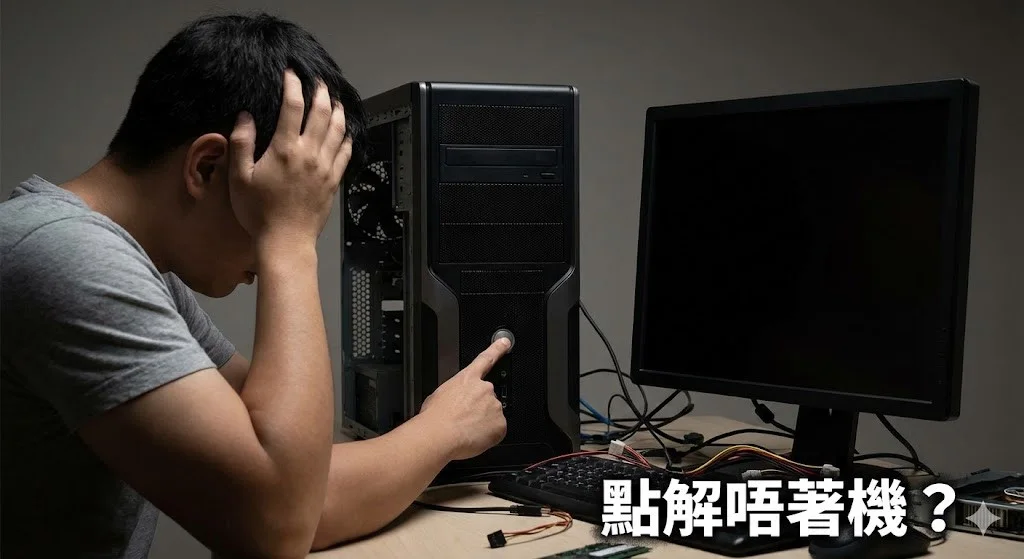
If there are no lights, fans or sounds when you press the power button, start with power. If the fans run or the machine shows a logo, that is a different symptom. Tell those cases apart before testing parts.
1. Check the outlet and power strip
Test the outlet with another safe appliance. If you use a power strip, check its switch and try a known-working wall outlet. If there is heat, damage or a burning smell, stop using that outlet or cable.
2. Check the cable, charger or PSU switch
Push the cable fully into the computer and confirm that the desktop PSU’s rear switch is on if it has one. For a laptop, use a known-compatible charger with the right output. Check whether the charger or laptop charging light changes when connected.
3. Disconnect accessories and follow the maker’s power reset
Disconnect USB devices, external drives and docks. With external power disconnected, follow the manufacturer’s power reset instructions for your model. Reconnect power and retry. Avoid opening a laptop just to disconnect a built-in battery.
4. Record lights, beeps or brief fan movement
A brief flash or repeating LED pattern can help narrow the problem. Read the manual for that exact model. A PSU fan that stays still can be normal on some units and cannot confirm a failed PSU on its own.
5. Check display and RAM only when you see signs of power
If fans or LEDs work but the screen stays black, check the monitor and input first. If the issue started after changing memory, unplug the desktop and check the recommended slots in its manual. These checks are less useful when the computer shows no activity at all.
6. Arrange testing if power is still absent
A technician can check the power button circuit, connections and motherboard, and test with a compatible known-good PSU. Never open a PSU or mix modular power cables from unverified models. If the PC powers on but the monitor stays blank, check the display next