
No Bootable Device on startup? 5 checks before reinstalling Windows
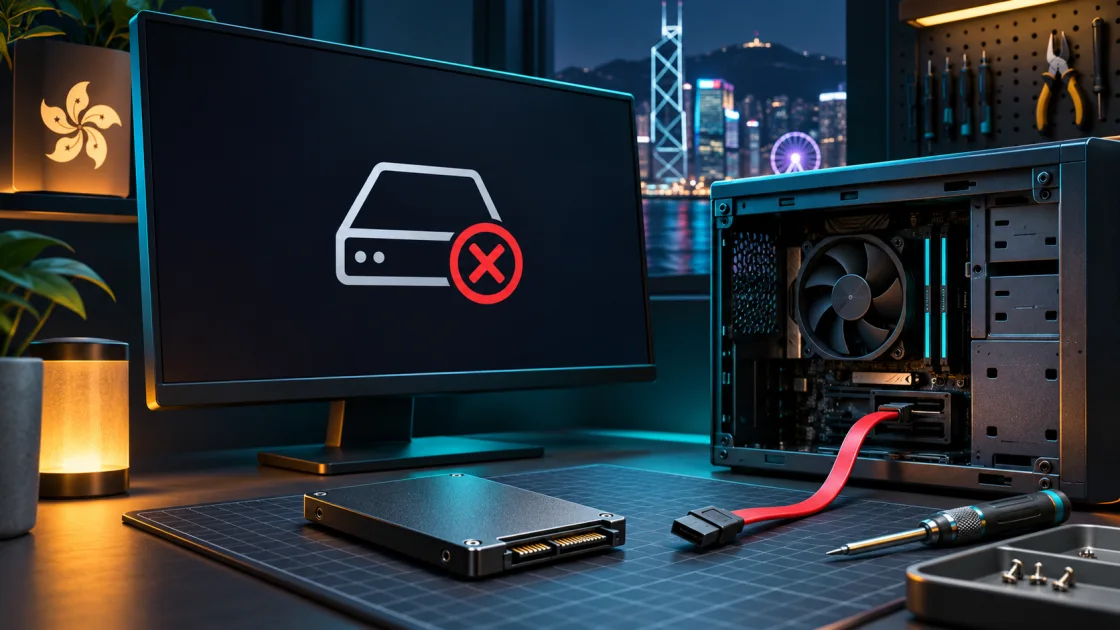
“No Bootable Device” means the computer’s firmware could not find a usable startup entry. A loose connection, the wrong boot order, damaged startup files or an unreadable drive can all cause it.
1. Disconnect external drives
Turn off the computer and remove USB drives, SD cards and external disks. Start it again. If the message appeared after plugging in a device, the firmware may have tried to start from it.
2. Check BIOS or UEFI
Use the manufacturer’s setup key and look for the system SSD or hard drive in the storage list. If the drive is present, choose Windows Boot Manager for that drive if available. Record the current settings before changing them. If the drive is missing, check whether a SATA data or power cable has come loose on a powered-off, unplugged desktop, or ask a technician to check the drive connection.
3. Try Windows Startup Repair
If the firmware detects the drive, use Windows recovery or an official installation USB. Choose Repair your computer → Troubleshoot → Advanced options → Startup Repair. Keep your BitLocker recovery key ready if the drive is encrypted.
4. Protect files if the drive looks unhealthy
If an old drive keeps disappearing, makes unusual sounds or reports a health warning, put data recovery ahead of repair attempts. Back up files if the drive is stable and readable. If it is unstable and contains important files, stop repeated scans or startups and seek recovery advice.
5. Reinstall only after checking the drive and backup
A blank replacement SSD needs an operating system. If your existing drive is healthy but Startup Repair fails, verify your backup before reinstalling Windows. Check the target drive by model and capacity before deleting or formatting anything.
Repair case: One customer’s M.2 SSD had shifted in its slot. Securing it and correcting the boot order restored startup. Microsoft’s Startup Repair guide