
USB device not working in Windows? 4 checks to try
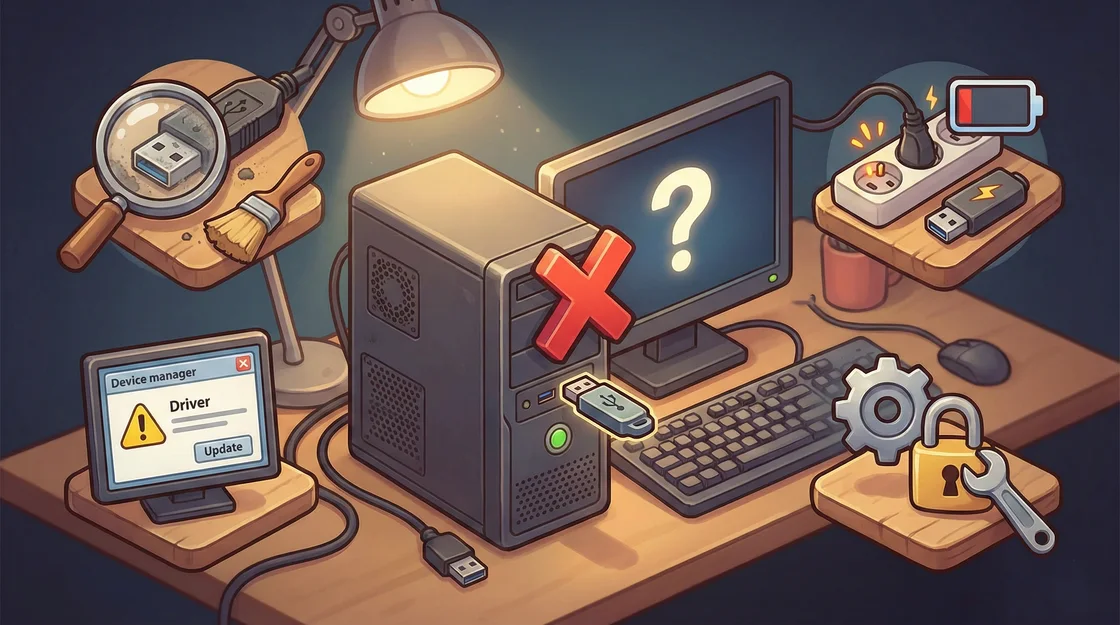
Start with a simple comparison. Try the USB device on another computer and a known-working USB device on the same port. This helps identify which side to check next.
1. Test the port, cable and connection
Disconnect hubs and adapters, then connect directly. On a desktop, try a rear motherboard port. If the cable detaches, test a known-good data cable. Some USB-C cables are intended mainly for charging and may not support the features your device needs.
2. Check what Windows detects
Open Device Manager and look under Universal Serial Bus controllers and the relevant device category. Record any warning code. For a specific device with an error, install the driver from its manufacturer. If appropriate, uninstall only the affected device entry, then unplug and reconnect it so Windows can detect it again.
3. Check power for hubs and external drives
If low-power devices work but a drive disconnects under load, remove other devices from the hub. Use the drive’s original power adapter where applicable or a compatible powered hub. A drive that repeatedly disappears, makes abnormal sounds or asks to be formatted needs a data-first assessment. Avoid formatting a drive containing files you need.
4. Investigate a group of ports that fails
If front ports fail and rear ports work, the case ports or their connection are worth checking. If several ports fail even with known-working devices, a technician can test the USB controller. In one Shadow Dragon case, the customer’s USB stick worked on another PC and the fault was traced to the desktop controller. A compatible PCIe USB card was offered as a workaround.