
Windows screen flickering? 4 ways to narrow down the cause
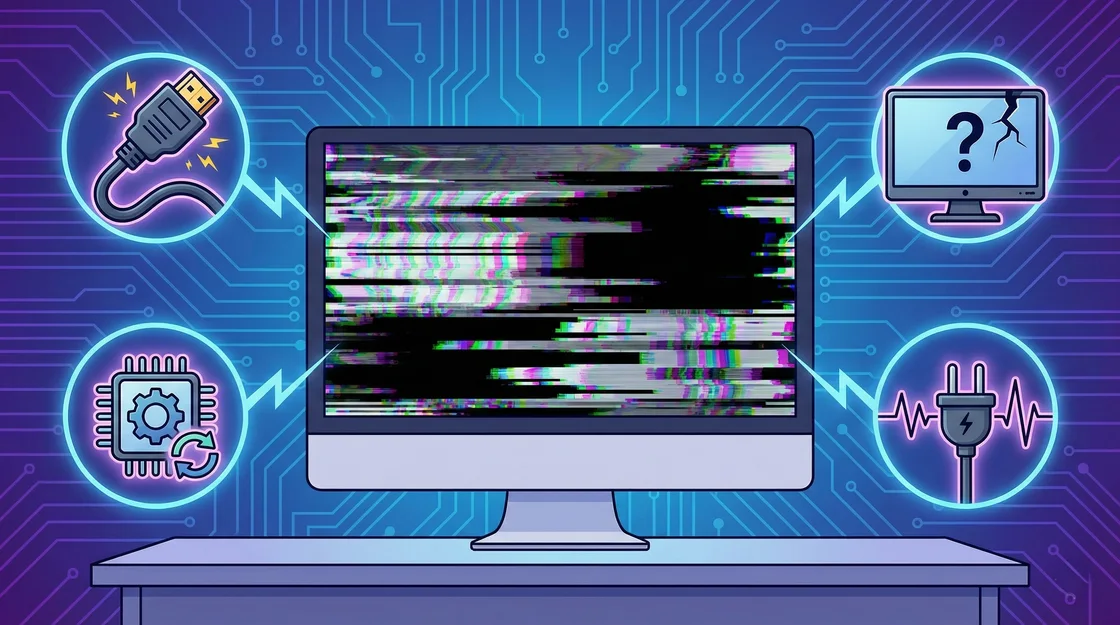
Note when the flicker starts. Flicker at the manufacturer’s logo, after a graphics update, or only when moving the laptop lid points to different checks.
1. Test the display cable and ports
For an external display, reseat both ends of the HDMI or DisplayPort cable. Try a known-good cable and another compatible input. If you use a dock, connect the display directly to the PC. Test the monitor with a second device if possible.
2. Compare Task Manager with the rest of the screen
Press Ctrl + Shift + Esc. If Task Manager flickers with everything else, the display driver is a likely cause. If it stays steady while the rest flickers, check for an incompatible app. If the problem started after a driver update, see whether you can roll it back in Device Manager. Otherwise, use the PC or graphics manufacturer’s supported driver.
3. Use a refresh rate supported by the display
Open Settings → System → Display → Advanced display. Select a supported refresh rate. If the flicker started after choosing a higher rate, try the previous stable setting and check whether the cable or dock supports the chosen resolution and rate.
4. Compare a laptop’s built-in and external displays
If the external monitor works while the built-in screen flickers, especially when moving the lid, ask a technician to inspect the internal cable, connector and panel. In one Shadow Dragon repair, the external display worked and securing a loose internal display cable resolved the flicker.
If both screens flicker, note whether it happens before Windows loads and whether it affects all apps. Microsoft’s screen flicker guide