
How to enable CSM on ASUS, MSI and Gigabyte motherboards
CSM (Compatibility Support Module) lets supported UEFI motherboards start certain legacy BIOS devices or operating systems. Use it when a boot device specifically needs legacy mode. The menu varies by motherboard and firmware version.
Before you change the boot mode
If Windows starts, press Win + R, run msinfo32, and note BIOS Mode and Secure Boot State. Photograph the existing CSM, Secure Boot and boot-order settings. If BitLocker or Device Encryption is active, make sure you have the recovery key. Keep UEFI for a normal Windows 11 setup or a UEFI-capable installation USB.
ASUS: Enable Launch CSM
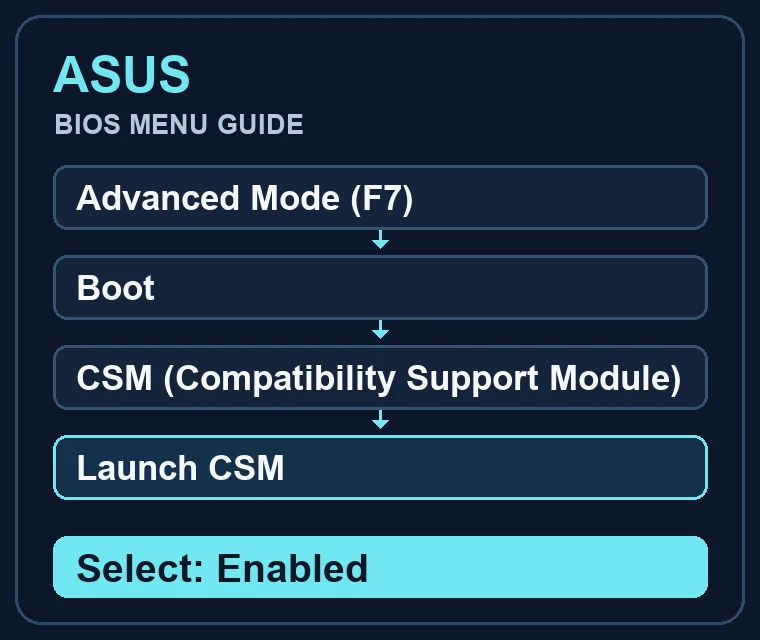
- At startup press Delete, or F2 on supported models. In EZ Mode press F7 for Advanced Mode.
- Go to Boot → CSM (Compatibility Support Module). Set Launch CSM to Enabled.
- Press F10, review the changes, save and restart.
ASUS support: Launch CSM and integrated graphics limitations
MSI: Select CSM in Windows OS Configuration
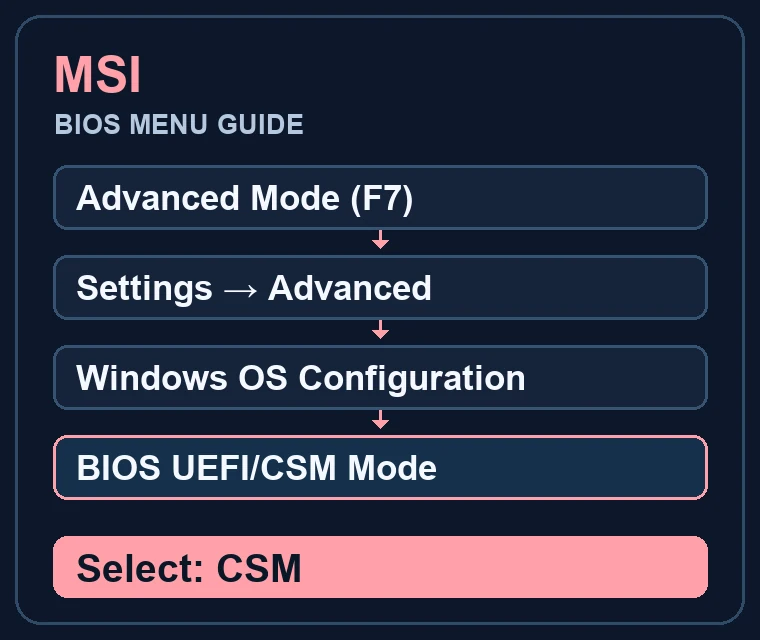
- Press Delete at startup to enter Click BIOS. Use F7 for Advanced Mode where shown.
- Go to Settings → Advanced → Windows OS Configuration. Set BIOS UEFI/CSM Mode, sometimes named BIOS CSM/UEFI Mode, to CSM.
- Press F10 to save and restart. If Boot mode select is greyed out, check Windows OS Configuration first.
MSI support: Greyed-out Boot mode select
Gigabyte: Enable CSM Support
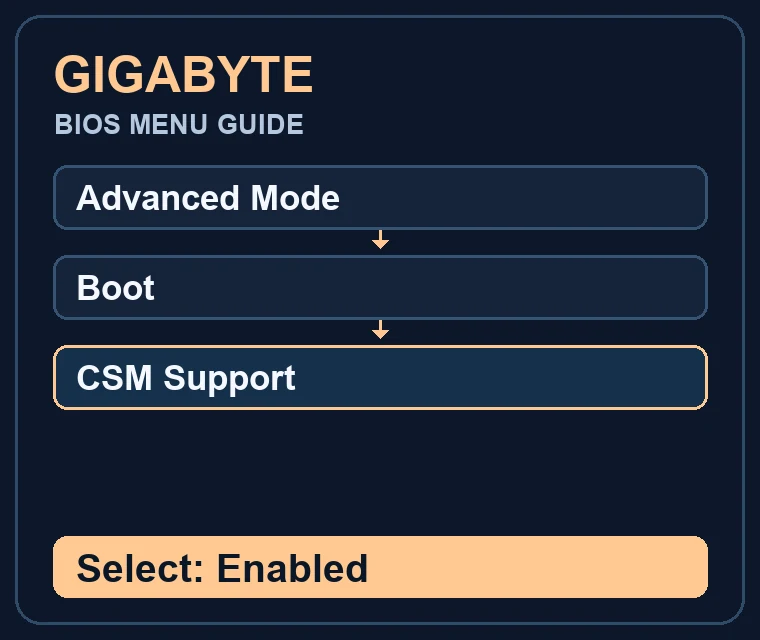
- Press Delete at startup and switch to Advanced Mode.
- Under Boot, set CSM Support to Enabled. Older firmware may put it on the BIOS tab.
- Press F10 to save and restart, then select the intended device from the boot menu.
Gigabyte Z490M manual: Boot menu
What if CSM is missing or Windows no longer starts?
The option is missing or greyed out
Check Advanced Mode and the manual for your exact model. Some platforms omit CSM. ASUS documents an integrated graphics limitation on certain Intel 500-series and newer boards. For modern Windows installation media, use a UEFI boot entry when available.
Windows disappears from the boot menu
Restore the original UEFI/CSM mode, Secure Boot setting and boot order. If Windows used UEFI, look for Windows Boot Manager for the original system drive. Toggling CSM does not convert GPT or MBR. Leave partitions intact while troubleshooting.
Should CSM be enabled for Windows 11?
Windows 11 uses UEFI and requires Secure Boot capability. Enabling CSM can make Secure Boot unavailable. Restore your previous settings after using a legacy tool.
Microsoft: Windows 11 and Secure Boot