
Wi-Fi keeps disconnecting on Windows? 5 checks to try
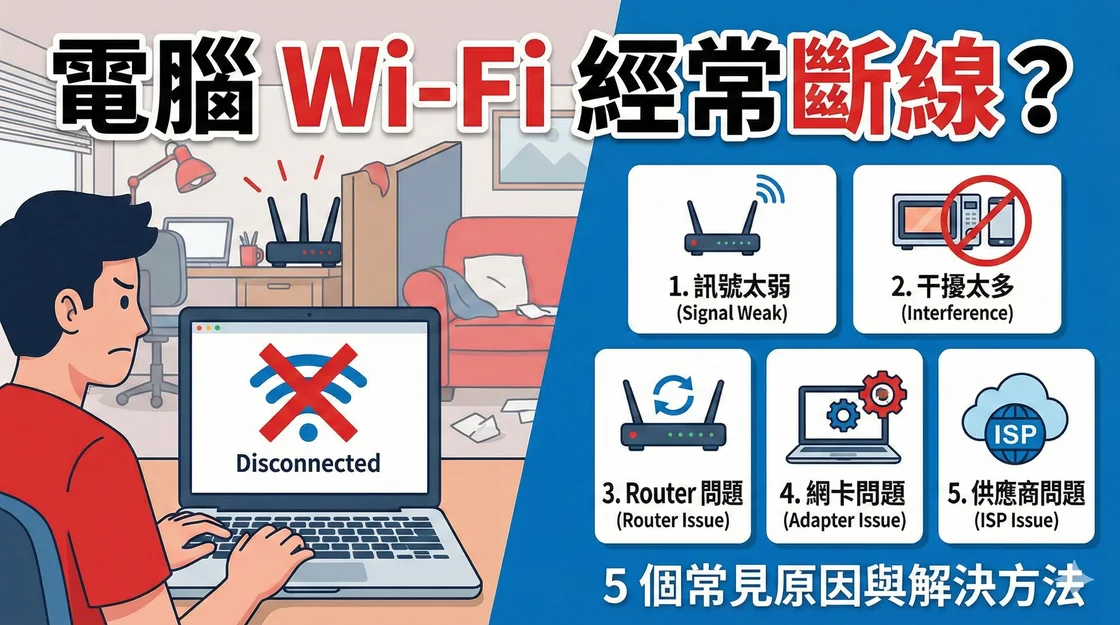
First check whether only your computer drops out. Connect a phone to the same Wi-Fi, temporarily turn off cellular data, and compare both devices when the PC loses connection. If several devices drop at once, start with the router or internet connection. If only the PC drops, try it close to the router or on another Wi-Fi network.
1. Check the router and internet connection
Check the modem or router status lights and your provider’s outage notices. If possible, connect the PC to the router by Ethernet. If wired and wireless devices lose internet together, investigate the router or provider connection. Restart the router according to its manual and check for official firmware updates. Confirm the fault before replacing the router.
2. Check Wi-Fi signal and interference
Move the router into an open, central position and test the PC nearby. Try 5 GHz close to the router and compare 2.4 GHz when farther away or behind walls. In a busy building, try the router’s automatic channel selection or a less crowded channel. If the problem only happens in rooms with weak coverage, consider repositioning the router, a wired access point, or a mesh system.
3. Check the Wi-Fi adapter driver
Open Device Manager → Network adapters and look for a warning on the wireless adapter. Download the driver for your exact model from the PC, motherboard or adapter manufacturer. If a recent driver update caused the dropouts, check whether you can roll it back. Save a copy of the driver before uninstalling it, especially if you have no other internet connection.
4. Check power-saving settings
If Wi-Fi drops after the PC goes idle or wakes from sleep, open the wireless adapter’s properties in Device Manager. If there is a Power Management tab, try clearing Allow the computer to turn off this device to save power and test again. Some adapters do not expose this setting, and changing it may increase battery use.
5. Check IP and DNS settings
If the PC stays connected to Wi-Fi but cannot reach websites, compare with another device before changing settings. On a home network that assigns IP addresses automatically, open Command Prompt as administrator and run these commands one at a time. Releasing the address temporarily interrupts the connection, so avoid doing this through a remote session.
ipconfig /release
ipconfig /renew
ipconfig /flushdns
The first two refresh the IP lease and the third clears the local DNS cache. These checks help with address or name-resolution problems. Weak radio signal and provider outages need different fixes.
If the dropouts continue
Record which devices are affected, whether Ethernet works, and whether the PC also drops on another Wi-Fi network. That makes it easier to isolate the router, internet connection, or wireless adapter.
Reference: Microsoft’s Wi-Fi troubleshooting guide.